Some useful Resources
PostGres Excercise website – pretty awesome
Technical ramblings | Mark Brooks

Some useful Resources
PostGres Excercise website – pretty awesome
As I have indicated before MS Access makes a brilliant ETL tool. Important in this is being able to connect to different databases. I have set out how to connect to MySQL and SQLAzure before – the following sets out how to connect to PostGres.
To follow along you will either need PostGres installed on your local computer or alternatively all required connection parameters to a database in the cloud or on your lan.
PostGres Download
You will also need to Download and install a PostGreSQL ODBC driver – these are available at the following(March 2018).
Scroll down the list – here I went to the bottom and obtained x64 version – MSI are downloaded (Microsoft Windows Installer files) – Install and then move to the next step.

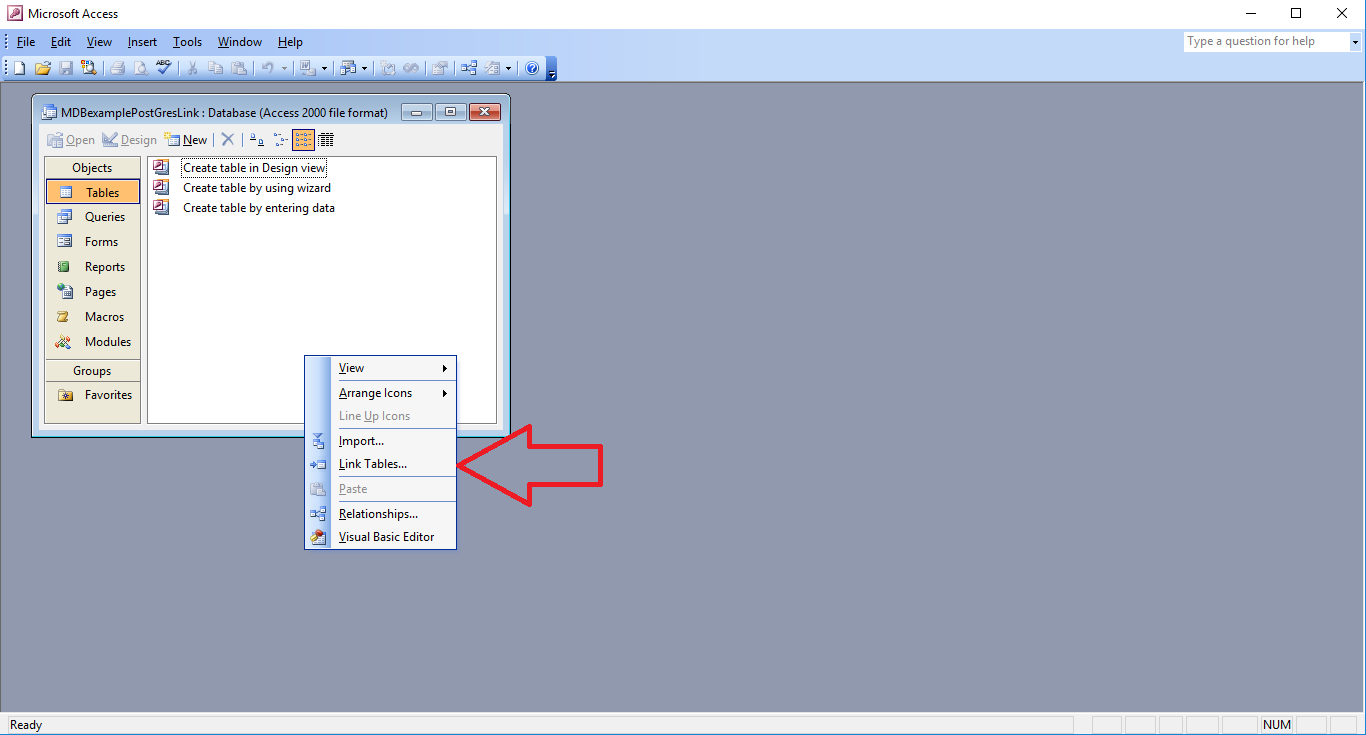
Next create a blank database and right click in the white area to reveal a menu – select link tables.
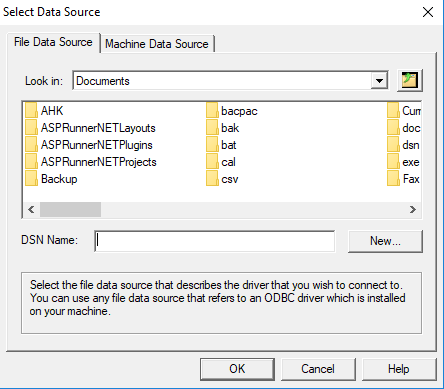
You should now be presented with the Select Data Source dialog. Here I hit New…
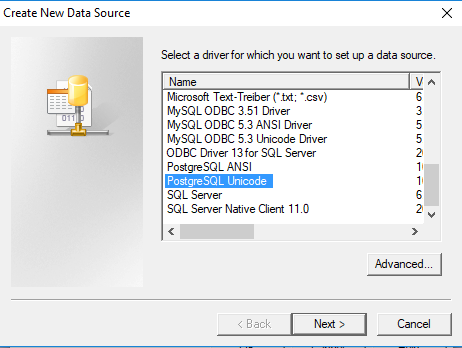
This brings up the Create New Data Source dialog which lists database drivers scroll down through the list to PostgreSQL Unicode and select
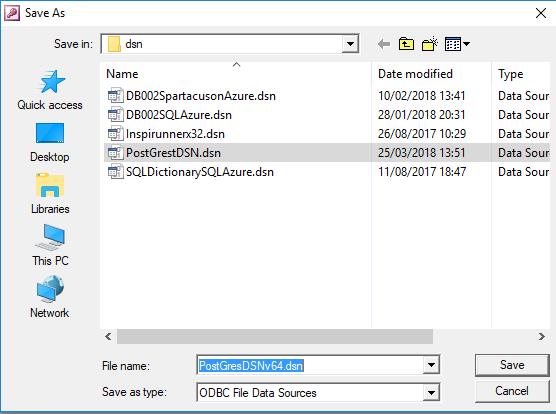
Give your DSN an appropriate name and then go back to link table but this time rather than hitting the new button navigate to where you saved your DSN and select it and press OK.
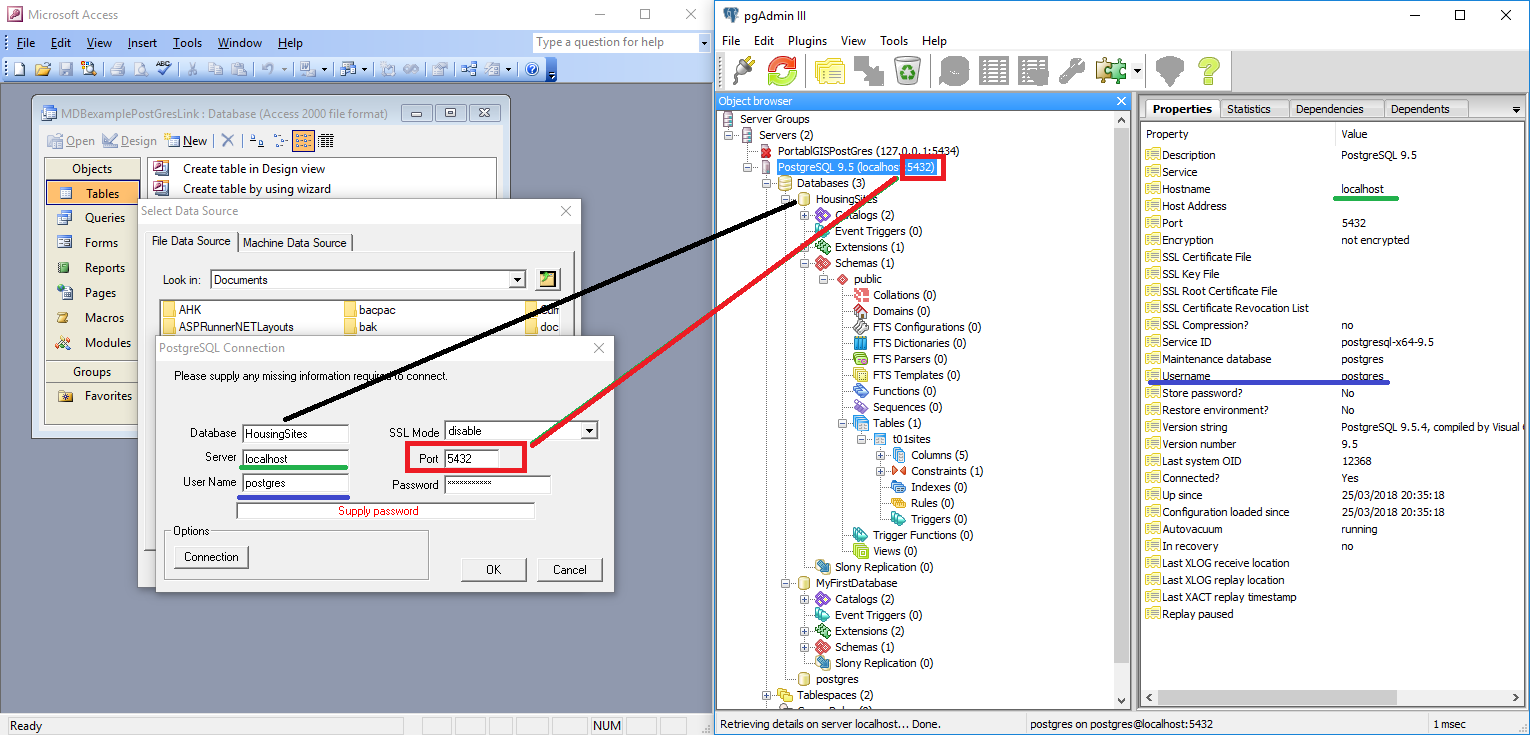
The ever important parameters – you just need to know these – if you set up PostGres and you can get in through PG Admin selecting properties on the database should reveal the panel that will give you some guidelines. You may wish to double click on the image below so you can get a closer link of how I place my parameters in. I have opened the PGAdmin dialog here and placed it alongside the MS Access database window to show the properties I am transferring across.
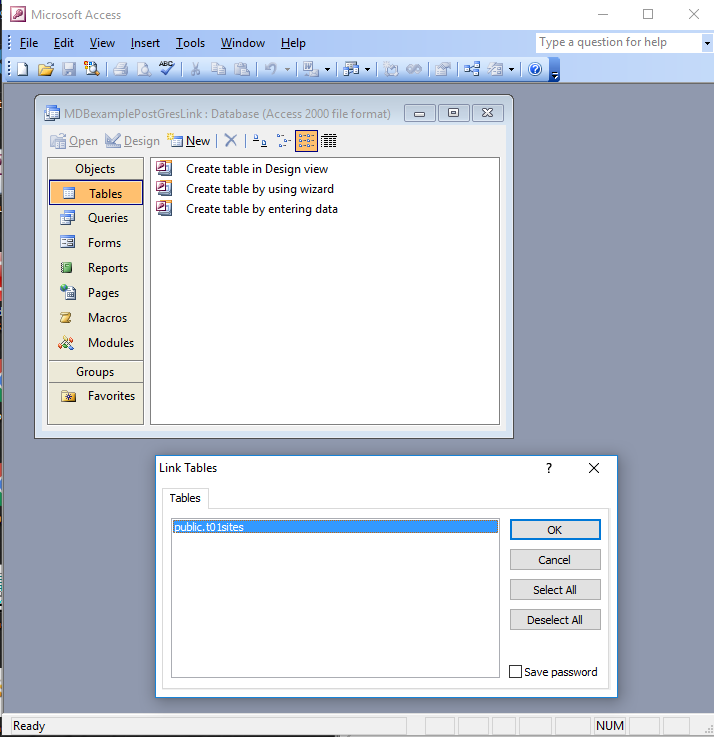
Hitting OK should present you with the tables in your database.
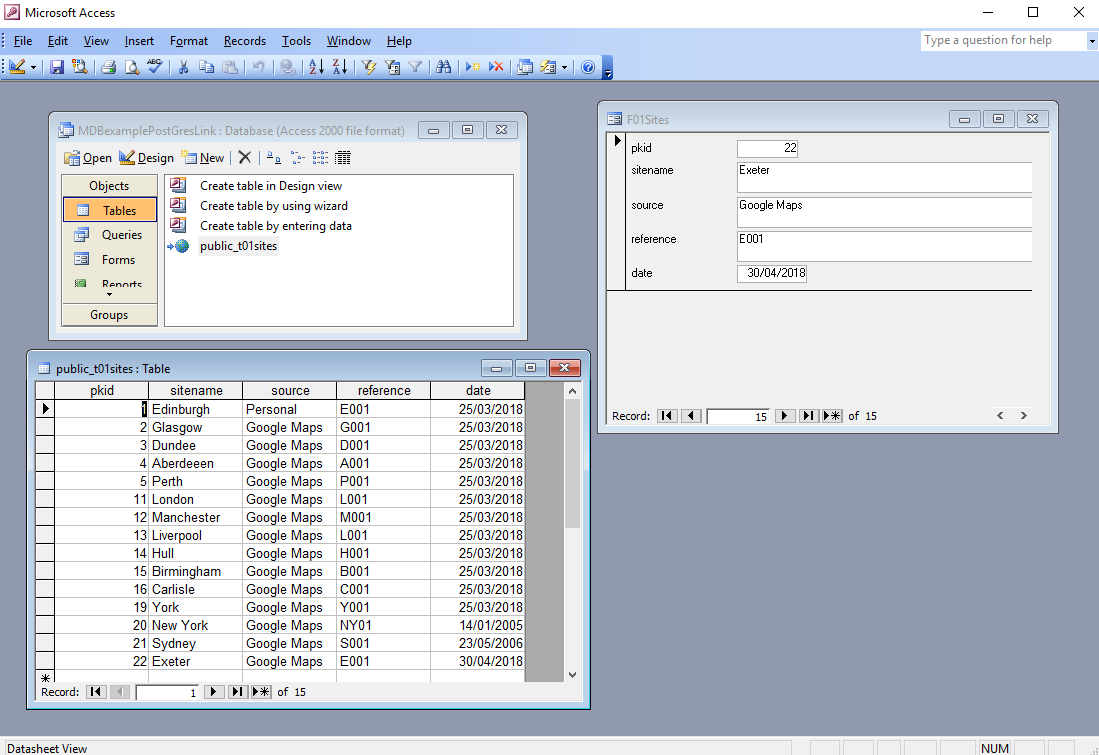
And here is a demonstration with the link in place along with the table open and a simple form shown.
The following uses
QGIS 2.14.2 Essen and
PostGres 9.5
A number of local authorities have released information through the UK’s data government site. The following example uses a shape file obtained from Lichfield District Council – At 2nd of October 2016 this was available for download from the following link
Lichfield Planning Applications
Open up QGIS and add Lichfield’s planning application shape file
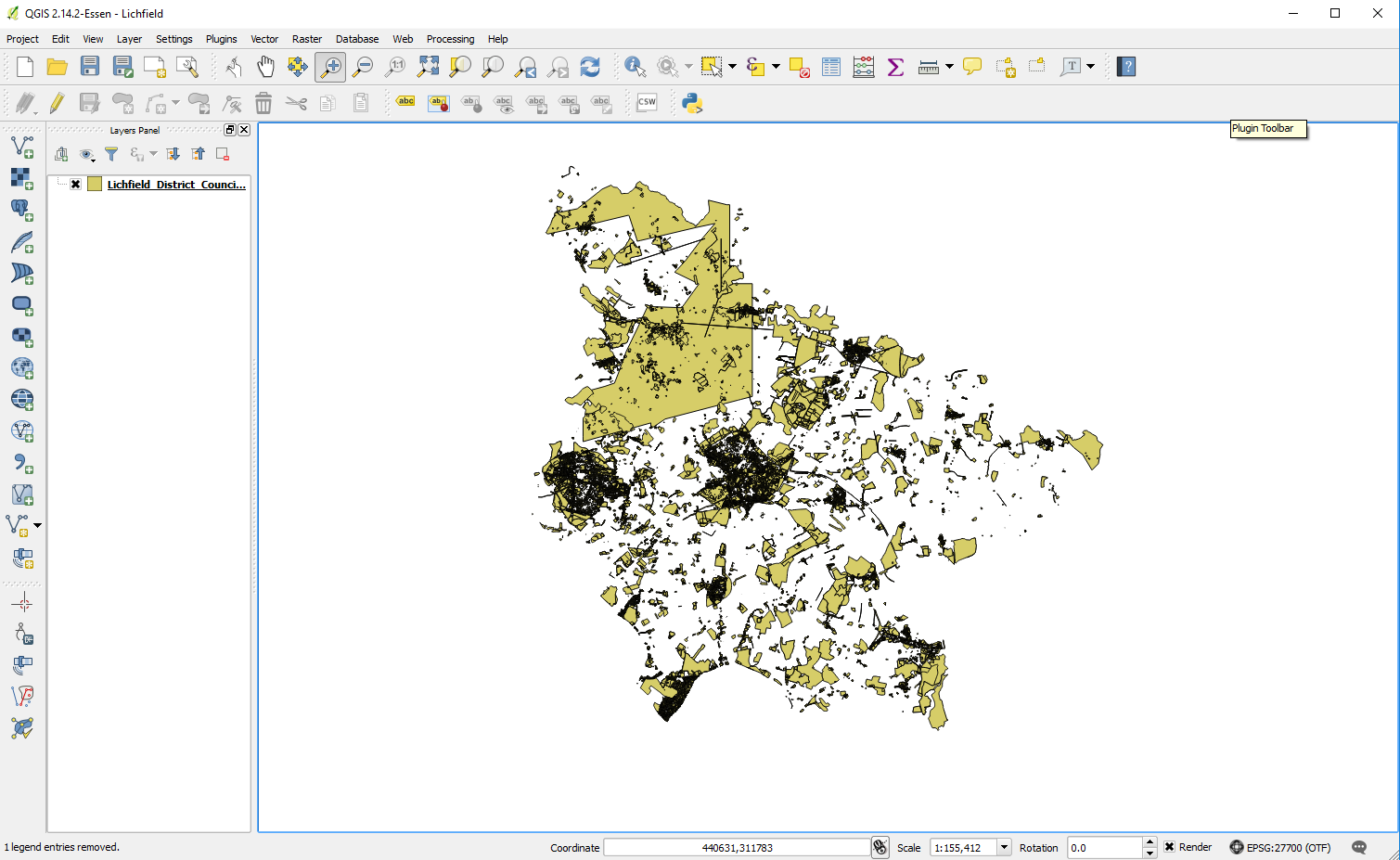
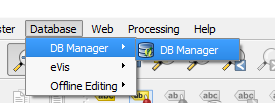
Now scan along the top menu and go to Database
Select the sub menu DB Manager and then DB Manager
The following windows dialog should appear
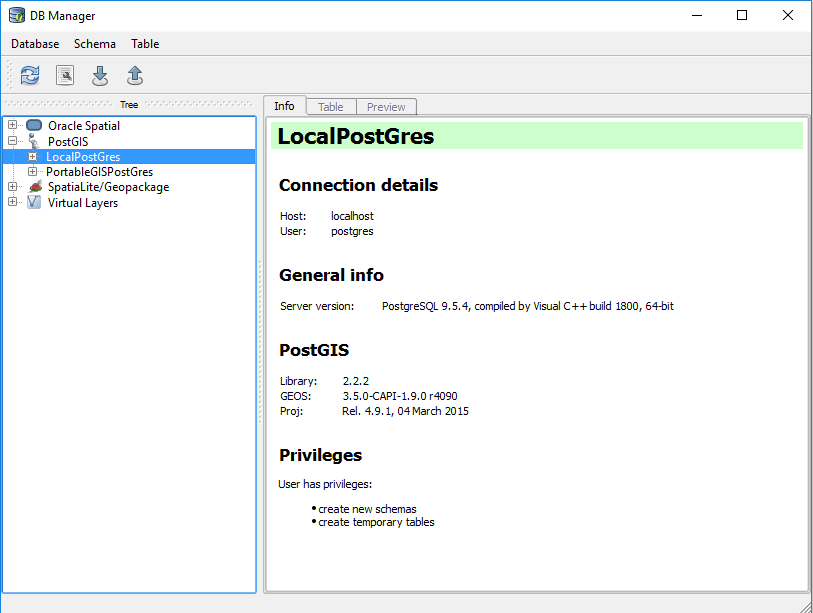
Expand the area on the left named PostGIS – any PostGIS instances that you have created should be visisble here. Note you will have to have the PostGIS server running. Then highlight the actual instance that would like to import information into.
In this case I use the instance LocalPostGres
Choose the third icon from the left.
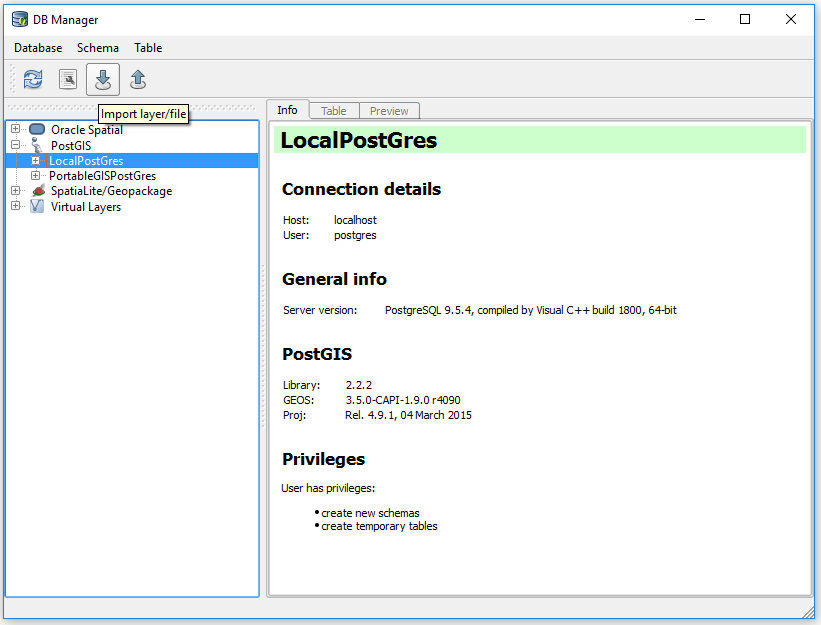
It should be noted that the window on the right may or may not show the correct connection to the database on the right.
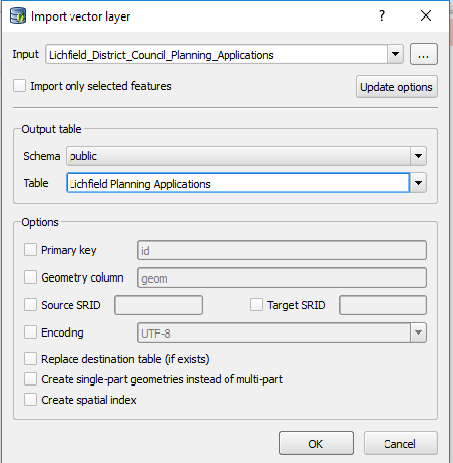
Name the table you wish to create and then hit OK – additional parameters are available.
There will be a delay before a confirmation of successful import happens – try to not issue commands during this time – once confirmation has been received go back into the PostGIS option and add the layer.
First ensure that you have both Postgres and QGIS installed on your machine.
In order for you to be able to connect to Postgres from QGIS on local host you must ensure 2 things. Firstly that the PostGIS plugin has been installed on your laptop AND secondly that you have included the postgis extension in each database that you wish to connect to. Without enabling the extension in the database you won’t be able to connect OR import shape files. Installation of PostGIS is often a default during the install of postgres but you can check whether this was completed correctly by using the Application Stack Builder, a small program that is installed with later versions of postgres.
I navigated to this on the win 8.1 machine I was using by using search.
Opening application stack builder you will be presented with the following.
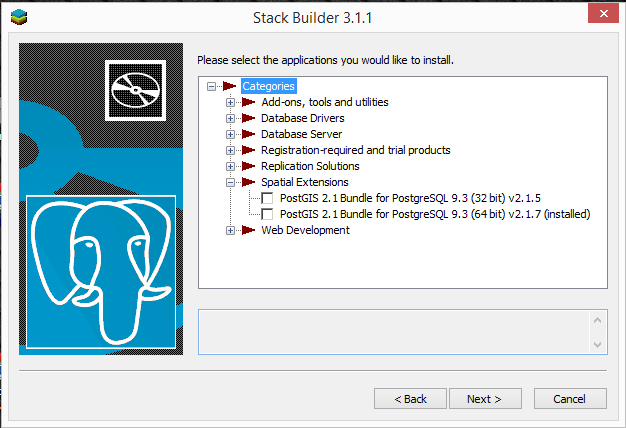
Expand the spatial extensions tree to identify if you already have the PostGIS plugin installed – if not – select as appropriate the plugin and you will be prompted to install. You will need an internet connection for this. Above you can see that my plugin was already installed.
Next you need to add the PostGIS extension to each Postgres database you wish to link to from QGIS this is done through PG Admin.
This is something that both myself and a colleague got caught out by and it took me an hour of searching to find how to fix it.
Below I have a database called GISData which I have just created. You will note there is only one object within the expanded extensions tree. You will not be able to connect to a database that does not include PostGIS in its list of extensions
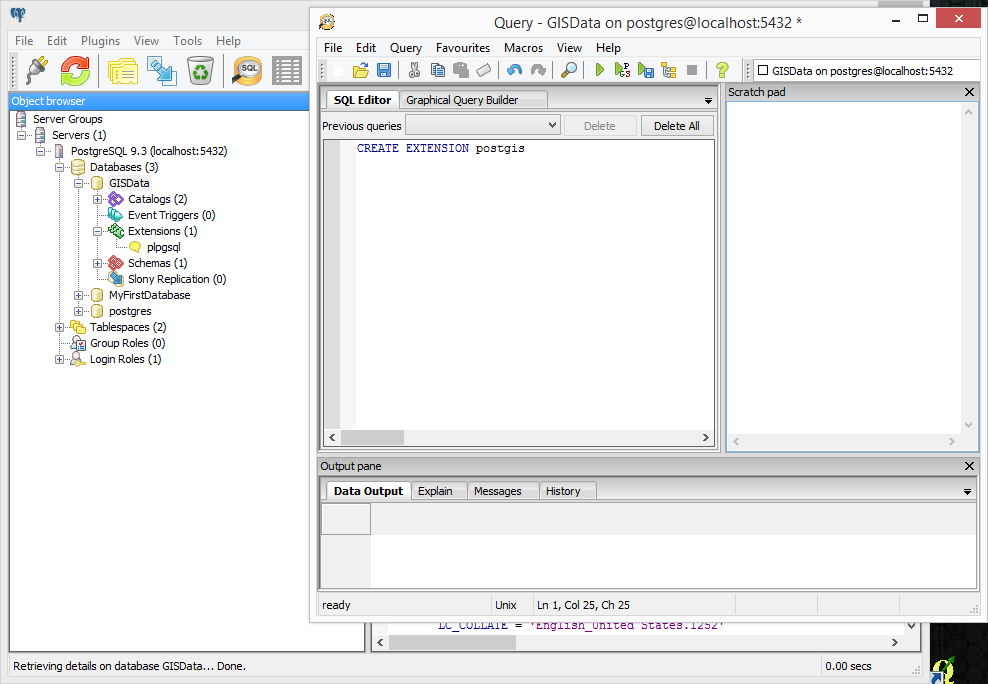
Hi-light the database you want to spatially enable then go to Tools – Query Tool( Ctrl + E will do the same). In the above picture I’ve slightly jumped the gun. To add the extension to the database type.
CREATE EXTENSION postgis
Run the query by selecting the green right arrow
There will be a short delay and then upon refresh of the connection postgis should appear in the list of extensions.
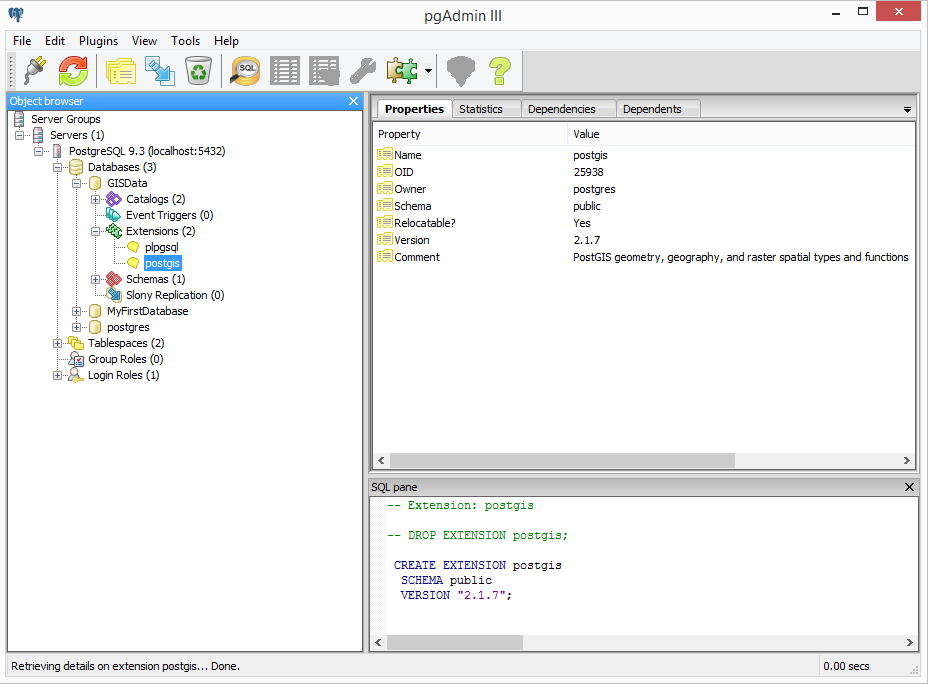
You can now close the Postgres administrator and return to QGIS where you should be able to setup the connection to the database.
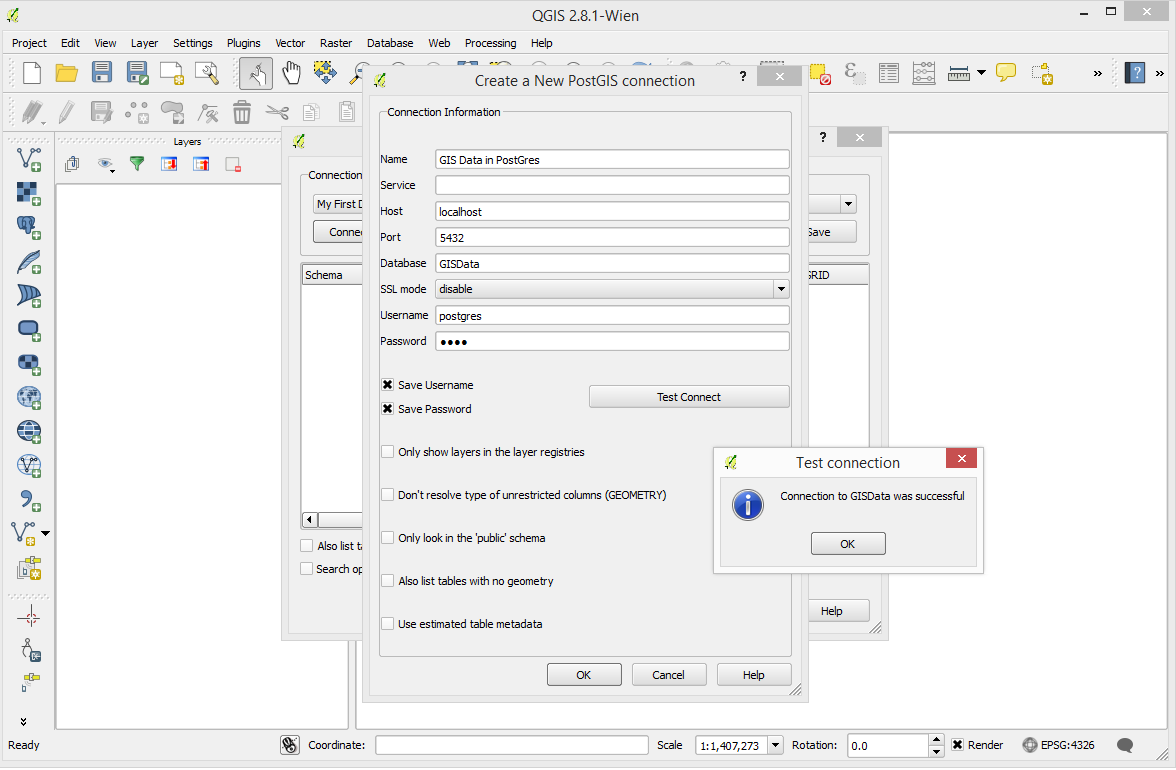
Parameters should be similar to below and it is useful to test the connection prior to saving.